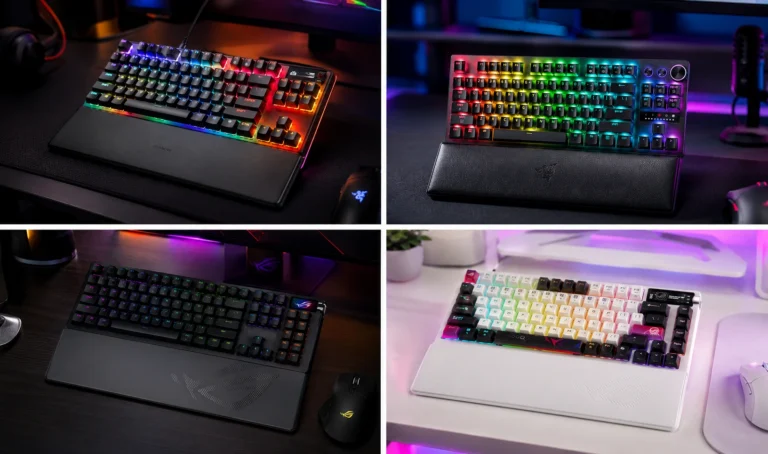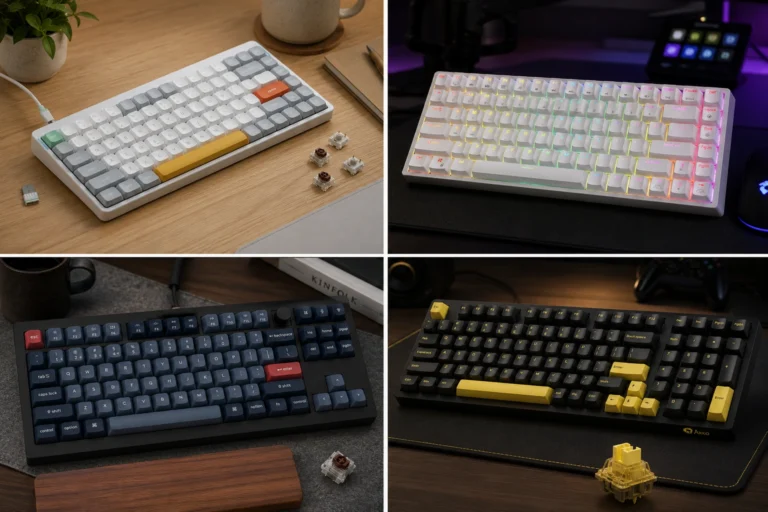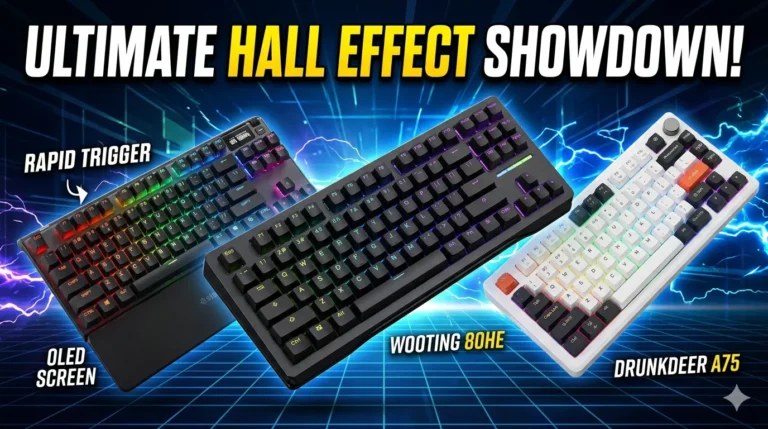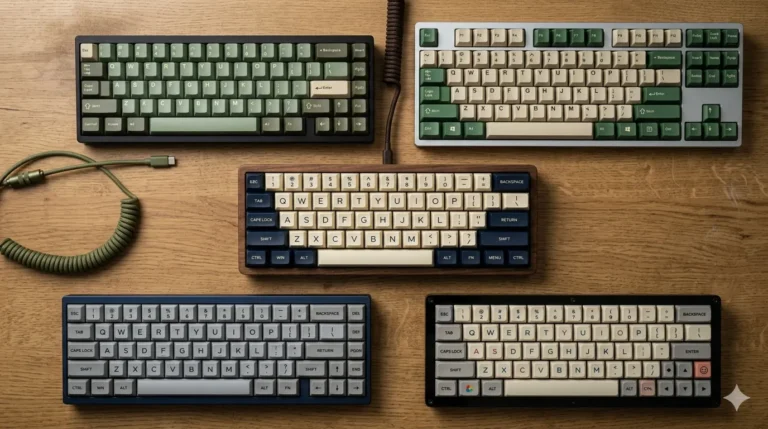
What Is a Mechanical Keyboard? A Beginner’s Guide

This article contains affiliate links. If you buy through them, I earn a small commission at no extra cost to you. I only recommend keyboards I’ve actually tested. As an Amazon Associate I earn from qualifying purchases.
Most people don’t think about their keyboard until something about it starts bugging them. The keys feel mushy. The spacebar wobbles. You hear a hollow ping every time you hit Enter on a Zoom call. Then someone at your office types on a mechanical board next to you, and suddenly your $25 plastic slab feels like typing through a wet sponge.
That’s usually how the rabbit hole starts.
I’ve been reviewing keyboards for about 14 years — switches, keycaps, gasket mounts, the lot — and the single most common question I get from people new to this is the one you probably just searched: what is a mechanical keyboard, really, and is it worth the upgrade? Short answer: yes, for most people, if you pick the right one. The long answer is what this guide is for.
TL;DR — Quick Pick by What You Actually Need
If you want the cheat sheet before reading the rest, here’s where most beginners land based on use case. These are the categories of board I’d point a friend toward, with specific picks I’ve either tested or that consistently get the job done.




| Best For | Switch / Style | Example Picks | Why It Wins |
|---|---|---|---|
| Your first mechanical keyboard | Hot-swap tactile or linear | Keychron V-series, K2 HE | Cheap enough to experiment; hot-swap lets you change switches later without soldering |
| FPS / esports gaming | Linear or Hall effect | Wooting 60HE, Logitech G Pro X TKL | Fast actuation, adjustable response, low input delay |
| Office or shared space | Silent linear or low-profile | Logitech MX Mechanical Mini, NuPhy Air75 | Won’t get you murdered by coworkers |
| Heavy typing / writers | Tactile, 75% or full-size | Keychron Q1, Drop CTRL | Satisfying bump, build quality that survives long sessions |
| Budget under $80 | Basic hot-swap mechanical | Royal Kludge RK68, Redragon K552 | Real switches without breaking the bank |
| Premium / enthusiast | Custom-tier prebuilt | Mode Sonnet, GMMK Pro, Keychron Q-series | Aluminum case, deep sound profile, easy to mod |
Pick the row that matches you, then read the rest if you want to know why those picks make sense.
So, What Is a Mechanical Keyboard?
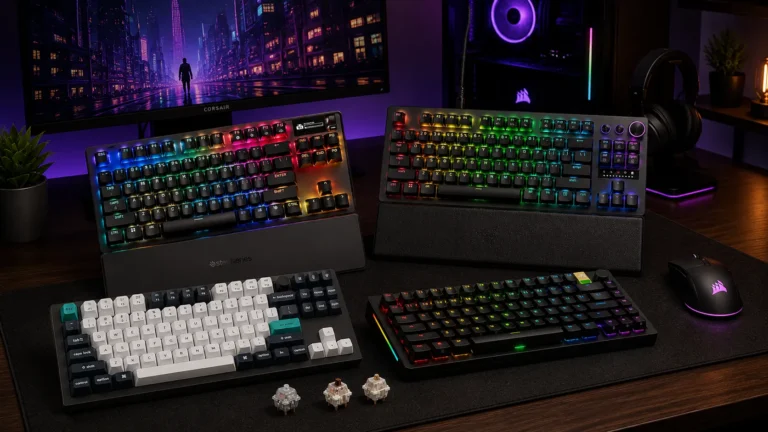
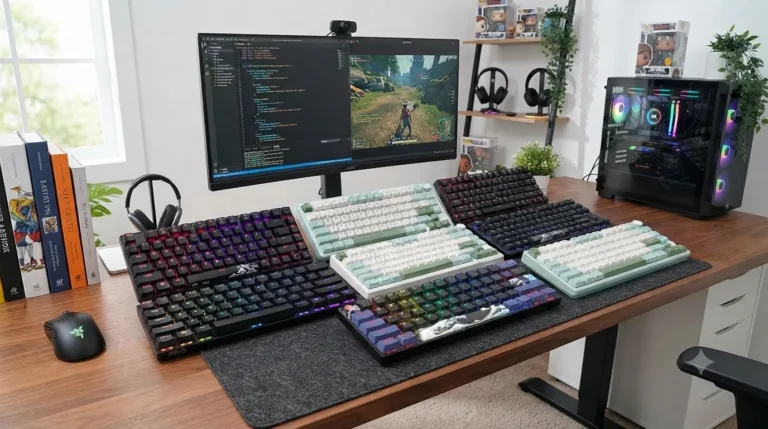
A mechanical keyboard is one where every key has its own individual physical switch underneath — a small spring-loaded mechanism that registers the press. Compare that to your typical office keyboard or a cheap laptop-style board, where a single sheet of rubber domes pushes down onto a circuit board to send the signal.
That’s the actual difference. Not the LEDs. Not the aluminum case. Not the brand. The switch.
When you press a key on a mechanical board, a stem inside the switch slides down, gets caught by a metal contact (or in newer designs, triggers a magnetic or optical sensor), and the keypress is registered. Then the spring pushes the stem back up, ready for the next press. Each key feels identical to the next because each key has its own dedicated hardware. Membrane boards can’t do that — by design, they share a single rubber sheet across all keys, and that sheet starts wearing unevenly within about a year of heavy use.
That’s why mechanical boards last. The decent ones are rated for 50 to 100 million keypresses per switch. A cheap membrane is rated for around 5 million if you’re lucky.
How Mechanical Switches Actually Work
There are three main switch families, and choosing between them is honestly the most important decision you’ll make. More important than the brand, the layout, or anything else cosmetic.
Linear Switches
Smooth from top to bottom. No bump, no click. They feel like a single fluid motion when you press them. Popular examples are Cherry MX Reds, Gateron Yellows, and the various “creamy” enthusiast linears that have shown up in the last few years.
- Best for: gaming, fast typists, people who don’t want to hear themselves work
- Feel: smooth, light to medium weight (45–60g actuation force is typical)
- Sound: the quietest of the three when stock; can be modded for a deep “thock” if you care
Tactile Switches
These have a small bump partway through the press. You feel it — that’s the actuation point letting you know the key registered. Cherry MX Browns are the most famous, and honestly, kind of a weak example of the category. Better tactiles: Gateron Browns, Boba U4Ts, Glorious Pandas, and Holy Pandas if you want the meme-worthy one.
- Best for: typing, writing, coding, general daily use
- Feel: noticeable bump, less likely to bottom out hard
- Sound: moderate; depends heavily on the case and any mods
Clicky Switches
Tactile bump plus an audible click. Cherry MX Blues are the original. Kailh Box Whites are sharper. Kailh Box Jades are loud enough to be a personality trait.
- Best for: people who type in a private space and love the auditory feedback
- Feel: crisp, definite, satisfying
- Sound: very loud — please don’t use these in an open office, I’m begging you
Here’s the honest take: most beginners think they want clicky because it’s the “movie keyboard” sound. After a week, most of them switch to tactile or linear. That click gets old fast, and other humans will tell you so.
Mechanical vs Membrane vs Other Keyboard Types
If you’re still wondering what a mechanical keyboard is in practical terms, the easiest answer is to see it against the alternatives.
| Feature | Mechanical | Membrane | Scissor (Laptop-style) | Optical / Hall Effect |
|---|---|---|---|---|
| Switch type | Individual mechanical switch per key | Single rubber dome sheet | Scissor mechanism under each key | Mechanical housing, light or magnet sensor |
| Typing feel | Crisp, distinct, customizable | Mushy, uniform | Shallow, snappy | Mechanical feel + adjustable actuation |
| Lifespan | 50–100M keypresses | 5–10M | ~10M | 100M+ |
| Customization | High — switches, caps, mods | None | None | Very high — adjustable actuation depth, response curves |
| Price range | $50–$400+ | $10–$30 | $50–$100 standalone | $130–$300 |
| Best for | Daily driving, typing, gaming | Light casual use | Portability | Competitive gaming, enthusiasts |
A few things to call out from that table. Optical and Hall effect switches are technically a subset of mechanical — they use a mechanical switch housing but replace the metal contact with a sensor. The Wooting 60HE is the headline example. They let you set how deep a press has to be before it registers, which is a real advantage in fast-paced games and overkill for almost everyone else.
Membrane boards still have a place. If you type two emails a day and never game, a $25 Logitech K120 will serve you fine for years. I’m not a snob about it. But if you spend hours a day on a keyboard, the upgrade to mechanical is one of the few “obvious” upgrades I’ll vouch for without a caveat.
Why Gamers Prefer Mechanical Keyboards
Three reasons, and only one of them is hype.
- N-key rollover (NKRO). Cheap keyboards struggle to register more than two or three keys pressed at once. Mechanical boards typically handle every key independently, which matters when you’re holding W+A+Shift+Spacebar mid-fight.
- Faster actuation. Linear switches register around 1.5–2mm of travel. Hall effect switches like the Lekker on the Wooting can be set as low as 0.1mm. That’s not marketing — it’s measurable.
- The feel. Confidence in your inputs matters more than people admit. Knowing you can spam, double-tap, and combo without input drops is part of why pros pay attention to keyboards at all.
That said — here’s the catch — most “gaming” keyboards under $100 are average mechanical boards with RGB and a misleading marketing page. A 1000 Hz polling rate sounds great in a spec sheet, but you won’t feel the difference between 1000 Hz and 8000 Hz unless you’re a top-ranked competitive shooter player. Skip the spec arms race. Focus on switches and build.
Keycaps, Profiles, and Materials
The keys themselves matter more than people realize. Two materials dominate:
- ABS: cheaper, smoother, develops a greasy shine after a few months of heavy use. Most stock keycaps on prebuilt boards are ABS.
- PBT: harder, more textured, resists shine almost indefinitely. PBT is the upgrade I’d recommend for any board you plan to keep more than a year.
Then there are profiles — the shape and height of each key:
- OEM: the standard sculpted profile on most prebuilt boards
- Cherry: slightly shorter than OEM, popular with enthusiasts
- SA: tall, sculpted, dramatic — divisive
- XDA / DSA: flat, uniform height across rows
Most beginners don’t need to think about profile right away. PBT vs ABS is the only material decision that’ll really affect how the board feels six months in.
Form Factors and Layouts
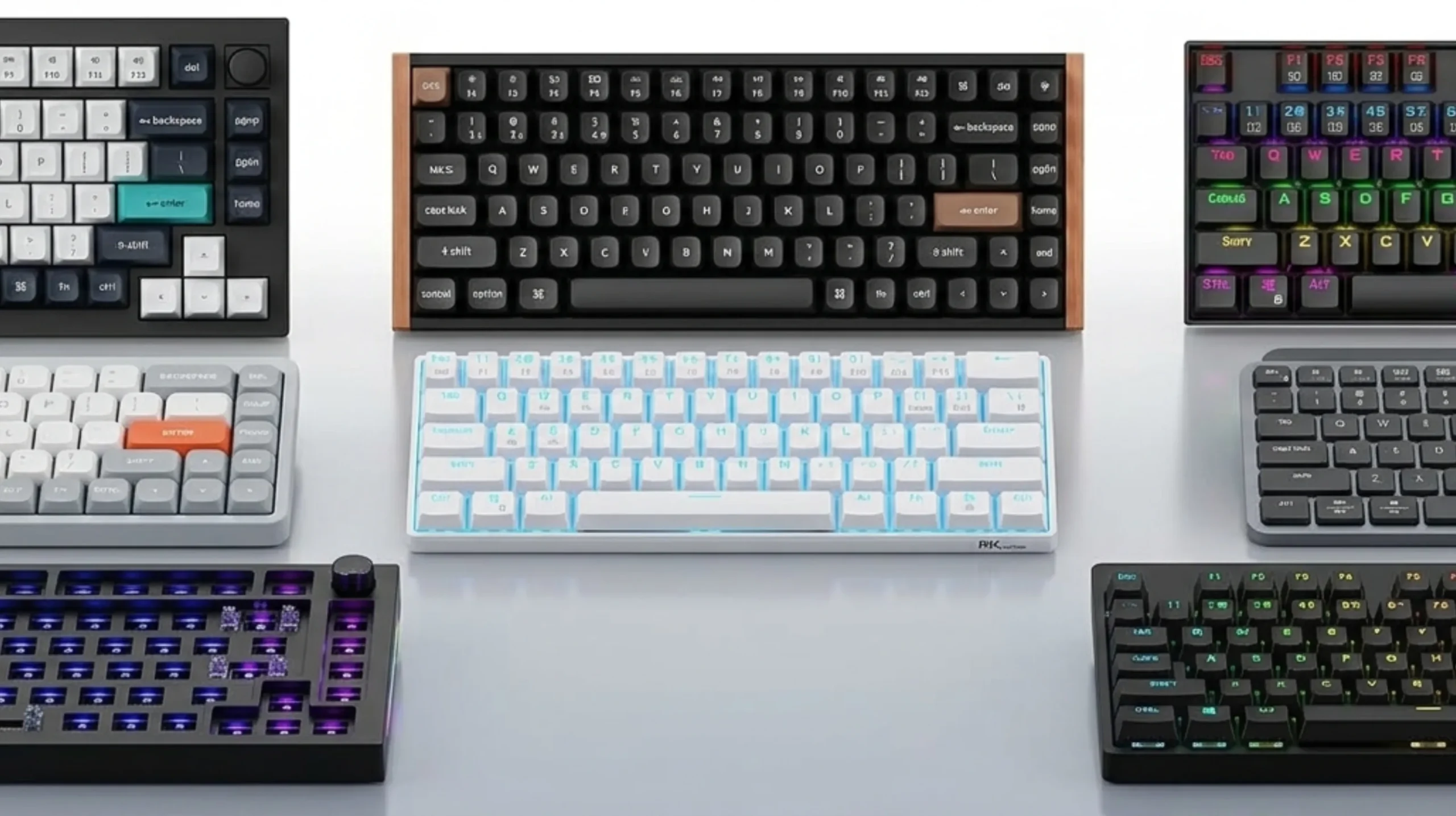
The size of the board is its own decision tree. Quick rundown:
- Full-size (100%): all the keys, including the number pad. Good for accountants and data folks.
- TKL / 80%: no number pad. The most popular gaming format.
- 75%: TKL minus some space; keeps the arrow keys and function row close together.
- 65%: no function row, has arrows. A great daily driver size.
- 60%: no function row, no arrows, no nav cluster. Compact and minimal — you reach arrows via a function layer.
If you’ve never used anything below TKL, start at 75% or 65%. The 60% jump is real, and not everyone likes it. I went 60% for a year and crawled back to 65% — I missed having dedicated arrow keys more than I expected.
What Beginners Overpay For
This is where I’ll be the friend who tells you the truth:
- RGB. It’s fun for a week. If a board you like happens to have it, fine. Don’t pay extra for it.
- “Gaming-grade” branding. Razer, Corsair, and Logitech all make good keyboards, but the markup on their gaming lines is real. A $90 Keychron will often out-feel a $180 gaming-branded one.
- Software-heavy boards. If a board needs a 400 MB driver to remap a key, that’s a downside, not a feature. QMK and VIA — the open-source firmware on enthusiast boards — do the same thing in your browser, no install required.
- Sound mods you can do yourself. Tape mod, foam mod, lubed stabilizers — all cost less than $15 in materials and turn a $90 board into something special.
Most people overpay for marginal sound differences. A $200 board and a $400 board do not sound “twice as good.” They sound 10% different, and only to a trained ear. I’ve had blind-A/B tests with reviewers who couldn’t tell the two apart.
What to Actually Look For
If I were buying my first mechanical keyboard tomorrow, here’s the checklist I’d use:
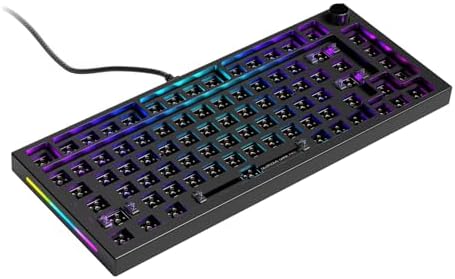
- Hot-swap sockets. Lets you pull and change switches without soldering. Future-proofs the board.
- PBT keycaps included. Saves you a $30 upgrade later.
- A switch type that matches your use case. Re-read the switch section if you skipped it.
- A layout you can actually live with. 75% or 65% for most people; TKL if you use arrow keys constantly.
- QMK or VIA support if you want to remap keys. Skip this if you don’t care.
- A reasonable price. You don’t need to spend more than $120 for a great daily board.
That’s it. Everything else is preference and upgrade path.
FAQ: What Is a Mechanical Keyboard?
What is a mechanical keyboard in simple terms?
A keyboard where each key has its own dedicated physical switch underneath, instead of a shared rubber sheet. That’s the whole difference — every other feature (RGB, wireless, layout) sits on top of that core design.
Are mechanical keyboards worth the money for beginners?
For most people who type more than an hour a day, yes. The minimum viable upgrade is a $70–$100 board with hot-swap sockets and PBT keycaps. Anything cheaper risks being a sidegrade from a decent membrane.
Are mechanical keyboards always loud?
No. Linear switches with sound dampening are nearly as quiet as a laptop keyboard. Silent linears (like Gateron Silent Yellows) cut sound even further. Avoid clicky switches if quiet matters to you or anyone within earshot.
Do mechanical keyboards make you type faster?
Slightly, in my experience — mostly because they’re more comfortable, so your hands stay fresher for longer. The keyboard itself doesn’t add words per minute. Practice does.
What’s the difference between mechanical and “gaming” keyboards?
“Gaming” is a marketing label. Most gaming keyboards are mechanical. But not all mechanical keyboards are marketed as gaming. The label adds RGB and branding more than performance.
Can I use a mechanical keyboard for work?
Absolutely. Pick a silent linear or tactile switch, grab a quiet 75% board, and you’ve got a setup that’s better for long writing sessions than almost any office membrane.
How long do mechanical keyboards last?
A decent one will outlast the computer you bought it for. Most switches are rated for 50 million presses minimum. I’ve got boards from a decade ago that still type perfectly.
Are wireless mechanical keyboards any good?
Yes, finally. A few years back I’d have said skip them. Now, boards from Keychron, NuPhy, and Logitech run Bluetooth and 2.4 GHz wireless with low enough latency that even most gamers won’t feel it.
The Verdict
Now that you know what a mechanical keyboard actually is — individual switches, real customization, hardware built to last — the question isn’t whether you should get one. It’s which one fits your life. Start with a hot-swap 75% board with PBT keycaps and a switch type that matches your use case. Spend somewhere between $90 and $120. Skip the RGB tax. Mod the stabilizers later if you want to get fancy, but you don’t have to.
You’ll feel the difference inside a week. After a month, you won’t go back.
This article contains affiliate links. If you buy through them, I earn a small commission at no extra cost to you. I only recommend keyboards I’ve actually tested. As an Amazon Associate I earn from qualifying purchases.